📣 New Feature Alert: You Can Now Send Receipts Directly to Customers
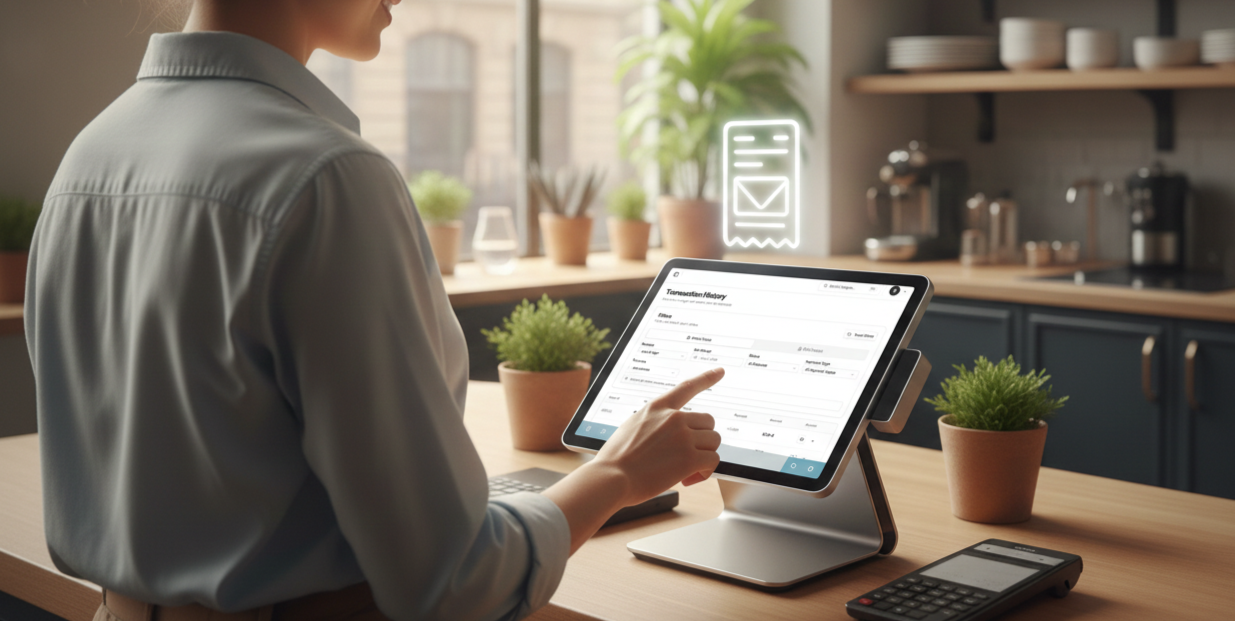
We're excited to release an enhancement to streamline how you manage customer receipts.
You can now email a customer their receipt directly from the Transaction History page - no jumping between systems, no extra tools.
Below is a quick walkthrough so your team can start using it right away.
1. Open the Transaction History Page
From the left-side navigation, go to Sales → Transaction History.
This page shows all your online and POS orders in one place.
2. Choose the Order Type You Want to View
You can switch between Online Orders and POS Orders depending on the receipt you want to send.
3. Apply Filters to Find the Order
Business: For multi-venue operators
Time Period: Choose the time period
Payment Type: Cash, card, etc.
Status: Delivered, Ready, Rejected, etc.
Providers: Munchi Online, Wolt, etc.
4. Click the Email Icon to Send a Receipt
Once you find the order, look at the Actions column on the right.
Click the small email icon.
5. Enter the Customer’s Email
A pop-up will appear. Add the customer’s email address then click Send Receipt - done.
These updates aim to enhance your productivity and improve customer satisfaction.
We appreciate your continued support and welcome your feedback.