💸 New Feature: Open Cash Drawers Directly from Your POS!
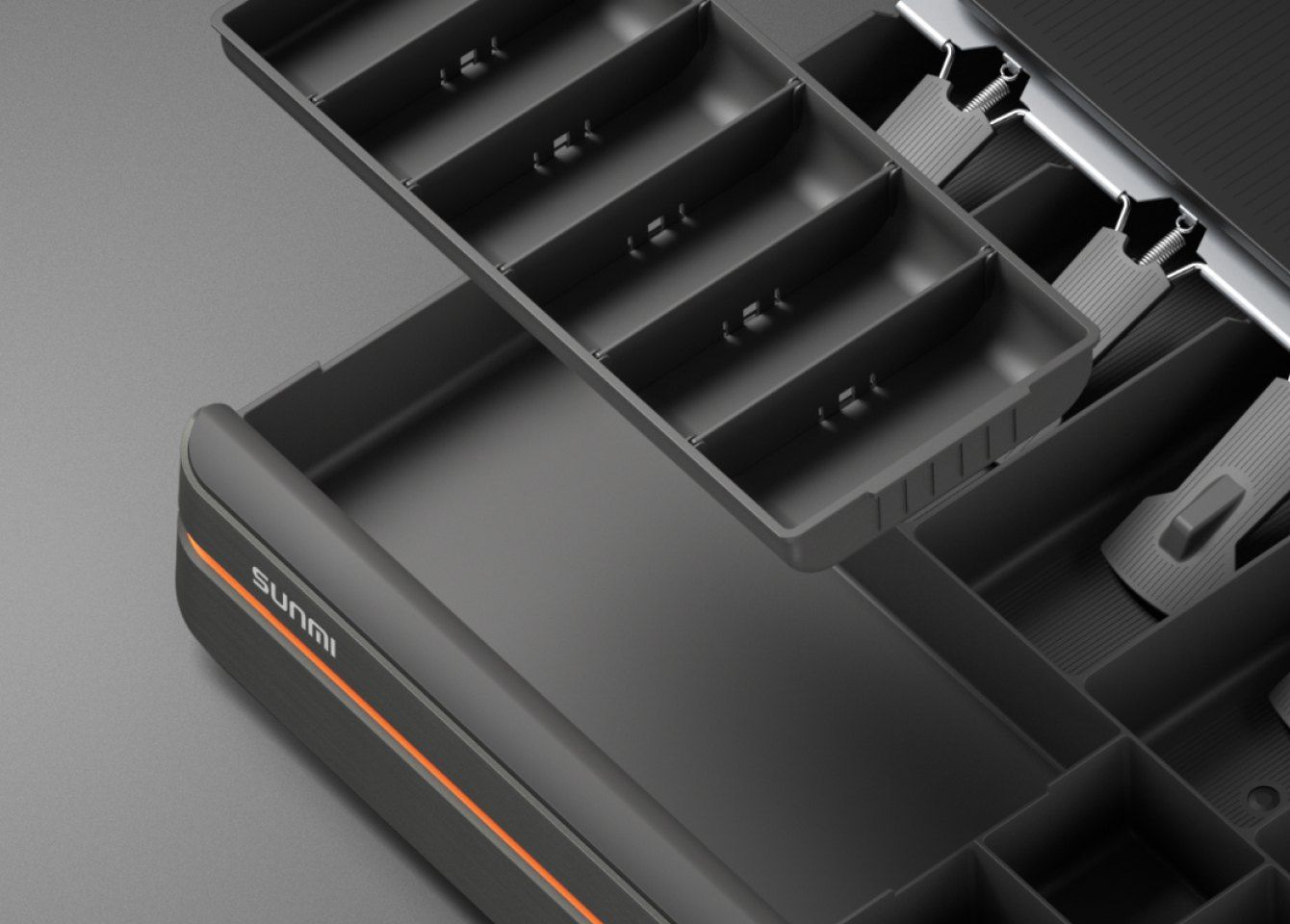
We’re excited to announce a brand-new feature that makes cash handling even smoother — you can now open your cash drawer directly from the POS!
This update is designed for stores using Star or Sunmi printers (please note that Epson printers are not supported).
🧰 What You’ll Need
To use this feature, make sure you have:
A Star or Sunmi receipt printer
A physical cash drawer with an RJ11/RJ12 cable
The cash drawer cable connected to your printer’s drawer port (usually labeled “DK” or “Drawer Kick”)
⚙️ How to Set It Up
Go to Settings
Navigate to: Settings → System → Printers
Edit/create your receipt printer
Scroll to the Cash Drawer section
Toggle “Enable cash drawer” to ON
Save your changes
💵 How to Open the Cash Drawer
Once enabled, the cash drawer will automatically open when the receipt prints
OR you can open the cash drawer in two ways (manually):
From POS Actions:
Tap Actions → Open cash drawerAfter Checkout:
Tap the Open cash drawer button on the confirmation screen
📝 Notes
Works only with Star and Sunmi printers
Not available for Epson or Kitchen printers
If multiple receipt printers have the cash drawer enabled, the first one will be used
With this update, your checkout process just got faster and more convenient.
Keep your drawer connected, and your operations will run smoother than ever! 💫