How to add a product
Written By Munchi
Last updated 3 months ago
Step 1: Login to dashboard.gomunchi.com with your credentials
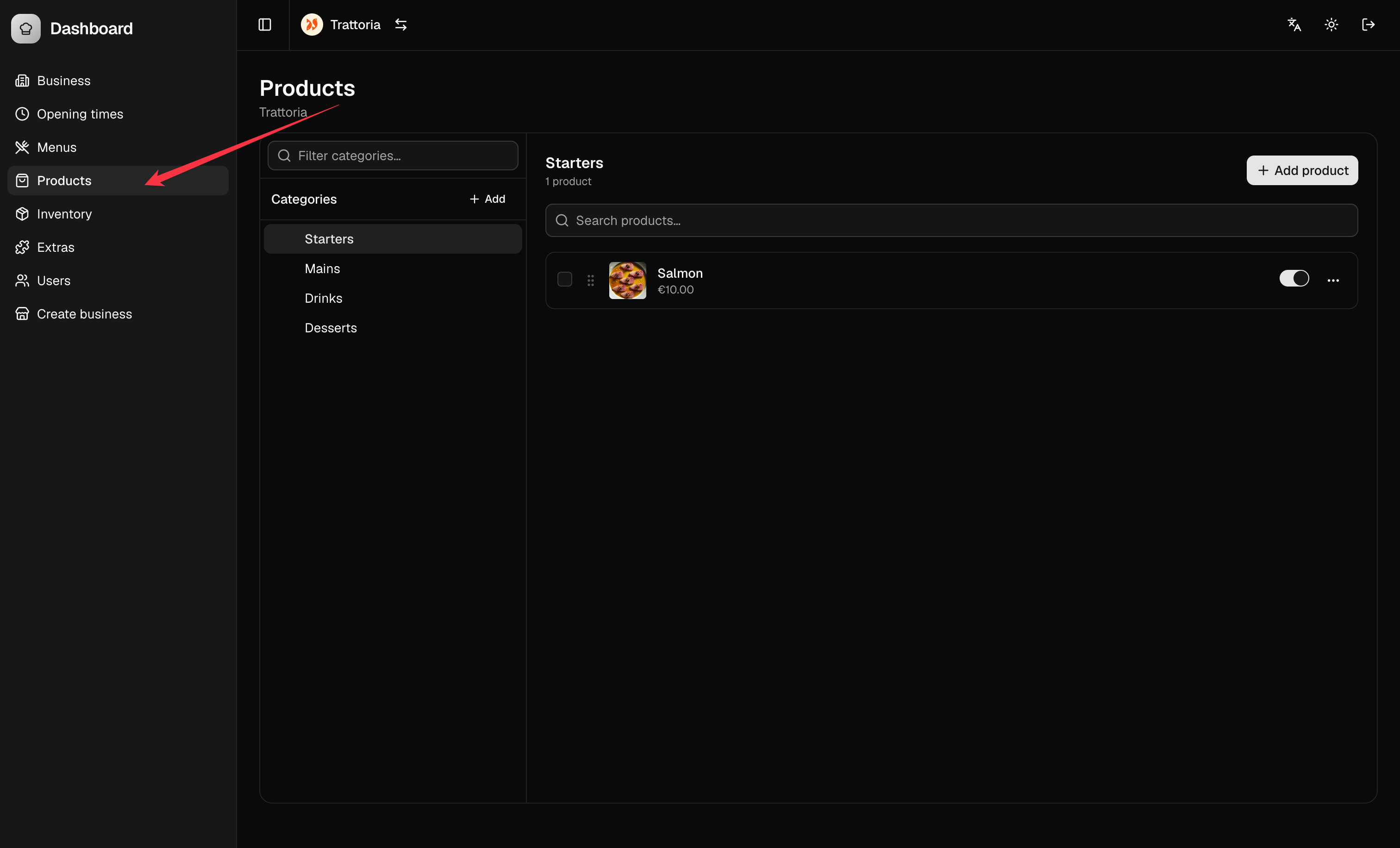
Step 2: In the dashboard, select the “Products” section from the sidebar menu.
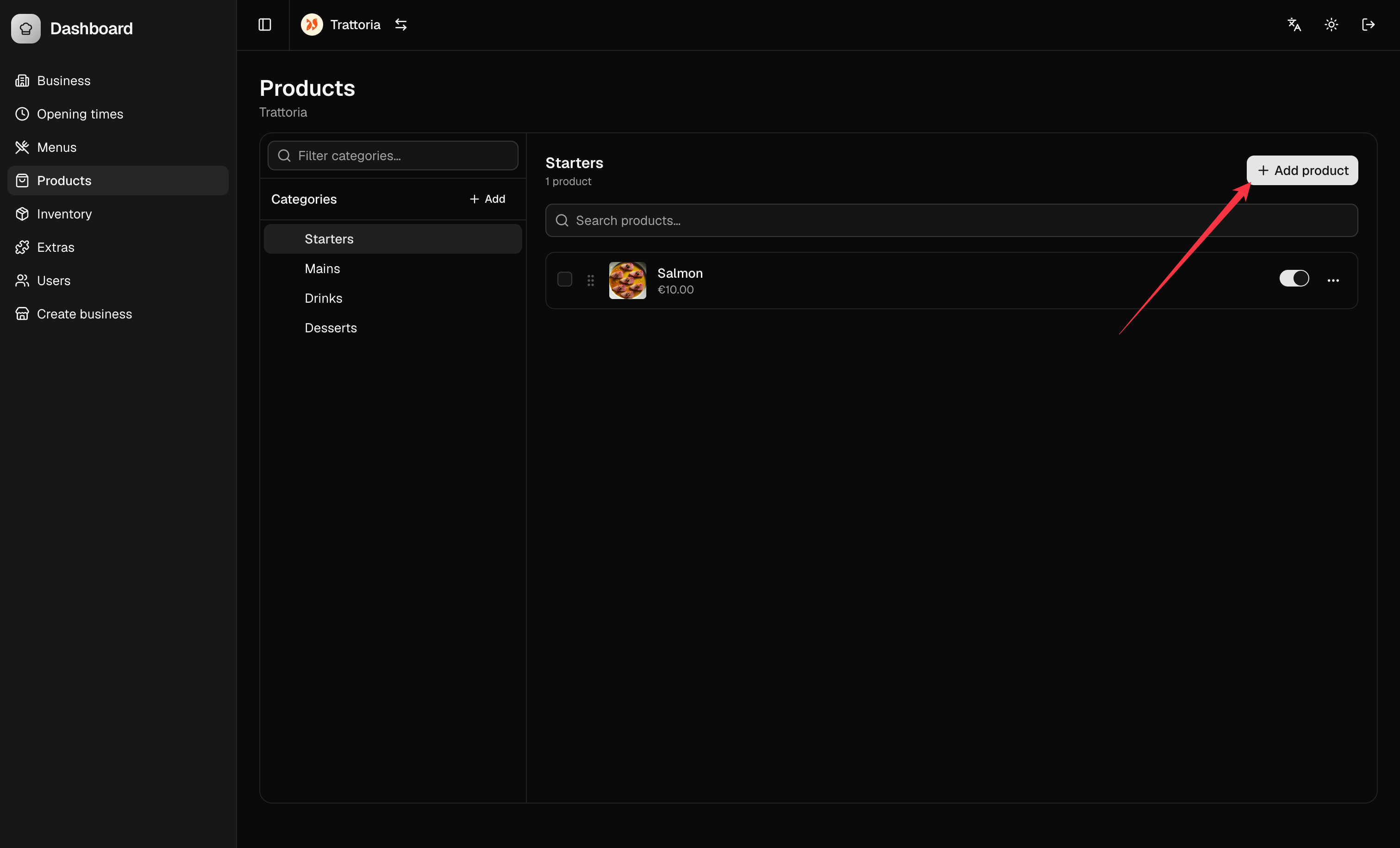
Step 3: Click on “Add Product”
Locate the “Add Product” button, in the product management area.
Click on it to start the product creation process.
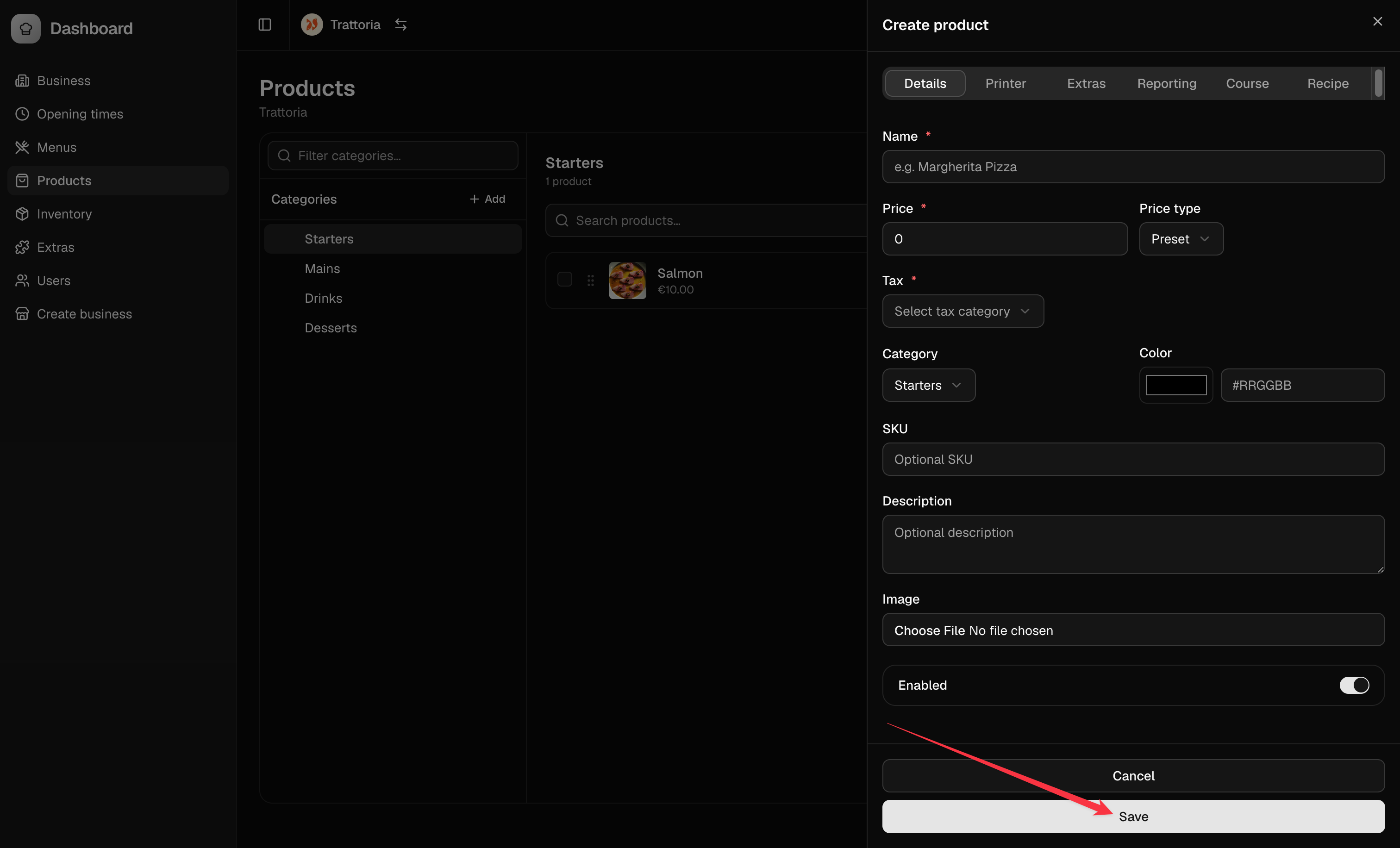
Step 4: Fill in Product Details
Optionally, upload a product image.
Enter the product name (e.g., “Cheeseburger” or “Latte”).
Add the price
Add a description and other details
Click save when you are ready
To make a new product visible in the POS, Kiosk, Mobile app or Online Store make sure the product is activated in the Menu section. More information here.